I still remember the email that made me fix my Gmail signature for good. A client replied to my proposal asking for “a number to call” when my phone number had been sitting in my email footer the whole time, except it wasn’t, because I’d never actually set one up. That five minute task had been sitting on my to-do list for two years.
If you’re reading this, you’re probably about to fix the same gap. Good news, adding a signature in Gmail takes less time than it took you to search for this article, and once it’s set up correctly it just works in the background for every email you send.
Why a Gmail Signature Actually Matters
A signature does more than list your name. It tells the person on the other end who you are, how to reach you, and whether you’re worth taking seriously. A missing or messy signature quietly costs you credibility on every single email, even the good ones. It’s a small detail that compounds, the way a clean voicemail greeting or a proper LinkedIn photo does.
How to Add a Signature in Gmail on Desktop
This is the most common way people set up a Gmail signature, and it only takes six steps.
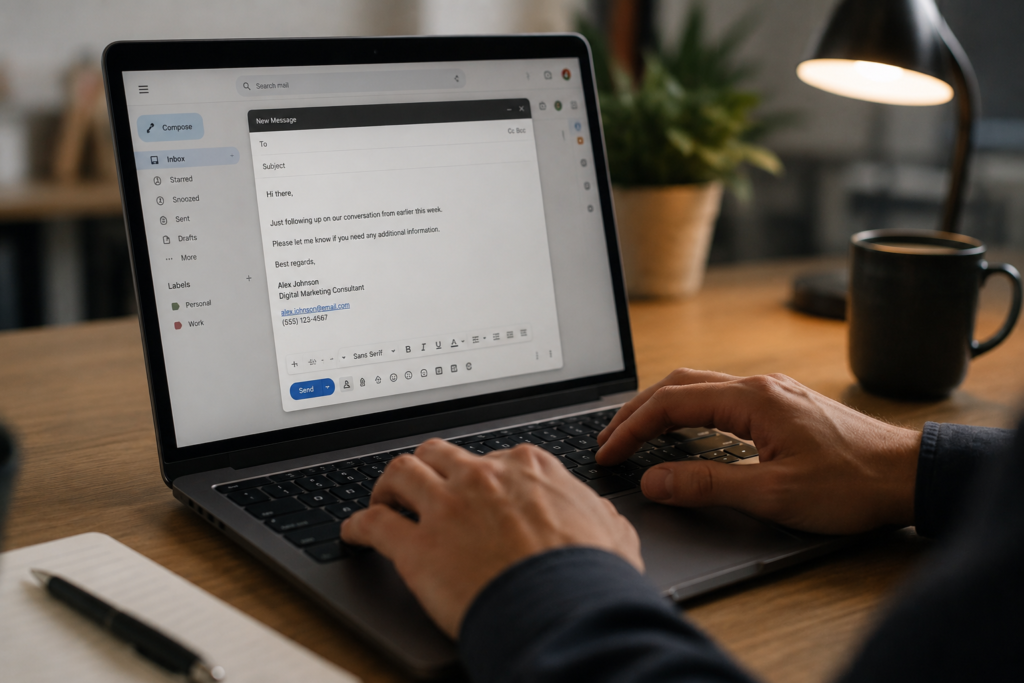
Open Gmail in your browser and click the gear icon in the top right corner, then select See all settings. Stay on the General tab and scroll down until you find the Signature section. Click “Create new,” give it a short internal name (this name is just for you, recipients never see it), then type your signature into the text box that appears.
Use the small toolbar above the text box to bold your name, adjust font size, or add a link to your website. When you’re happy with it, scroll further down to Signature defaults and choose which signature applies to new emails and which one applies to replies and forwards. These can be different, some people prefer a full signature on new emails and a shorter one on replies. Scroll to the very bottom and click Save Changes. Send yourself a test email to confirm it looks right before you start using it on real conversations.
How to Add a Signature in Gmail on Android and iPhone
Mobile signatures live in a completely separate setting from desktop, which trips people up constantly. Setting one up on your computer will not make it appear on your phone, you have to add it again inside the app.
Adding a Gmail Signature on Android
Open the Gmail app and tap the three horizontal lines in the top left to open the menu, then scroll down and tap Settings. Choose the account you want to update if you have more than one. Tap “Mobile Signature,” type your text into the field, and tap OK to save it. Android’s mobile signature editor only supports plain text, so skip the bold and colors here.
Adding a Gmail Signature on iPhone
Open the Gmail app and tap the hamburger icon in the top left corner, then scroll to Settings and select your account. Tap Signature Settings, toggle mobile signature on, and enter your text in the box that appears. Tap Done in the top right to save it.
How to Add an Image or Logo to Your Gmail Signature
Images only work through the desktop signature editor, not the mobile app. In the signature text box, click the small image icon in the toolbar, then choose whether to upload a file from your computer, pull one from Google Drive, or paste a web address pointing to an already-hosted image. Once it appears, click on it to resize it to Small, Medium, or Large before saving.
Keep logo files small, under about 25KB loads fastest, and stick to PNG for a clean background. A logo that’s too large will get compressed awkwardly by different email clients and can end up looking blurry in the recipient’s inbox.
Creating Multiple Signatures for Different Email Addresses
If you send mail from more than one address inside the same Gmail account, through the “Send mail as” feature, you can assign a separate signature to each one. In the Signature section, use the account dropdown above the text box to pick which address you’re editing, build that signature, and repeat for each address. This is genuinely useful if you run a personal address and a business one from the same inbox and don’t want your side project’s branding showing up on client emails.
What to Include in a Professional Gmail Signature
Keep it to four or five lines. Your full name, your title, your company, one phone number, and one link, whether that’s your website or a booking page, covers almost every use case. Resist the urge to cram in three social icons, a quote, and a company slogan, cluttered signatures actually read as less professional, not more.
If you’re building this out for a small business or freelance setup, treat your signature the same way you’d treat building an email list, it’s a small recurring touchpoint that compounds into real brand recognition over hundreds of emails.
If privacy is a concern for you or your team, it’s worth pairing a clean signature setup with a quick look at how to stop your emails from being tracked, since tracking pixels are sometimes hidden inside signature images from third-party generators.
Common Gmail Signature Problems and How to Fix Them
Almost every signature complaint traces back to one of these five issues.
| Problem | Most likely fix |
| Signature not appearing at all | Check Settings, General, Signature defaults, make sure the right signature is selected for New Emails and for Reply or Forward |
| Signature missing on phone | Desktop and mobile signatures are separate, add the mobile signature inside the Gmail app settings too |
| Image not showing | Use a public image URL or upload directly, private or expired links won’t load for recipients |
| Formatting breaks in replies | Some recipients’ email clients strip custom fonts and colors, stick to standard fonts and simple layouts |
| Extra dashes above signature | Gmail adds — automatically, check the box to remove it before quoted text in Settings |
If your signature keeps disappearing specifically on your phone after you were sure you saved it, it helps to rule out a sync or storage issue first, the same way you’d troubleshoot before you back up your Android device using Google One, checking that your Gmail app itself is updated and properly signed in.
Using HTML for a More Advanced Signature
The built-in editor covers most people’s needs, but if you want pixel-precise control over spacing, columns, or a banner image, you can build a signature in raw HTML and paste it into the signature box. This requires knowing how to structure and link HTML properly, since Gmail strips out external stylesheets, so all your styling has to be inline within the HTML itself rather than linked separately.
Final Thoughts
A Gmail signature is one of those tiny setup tasks that feels optional until the day it isn’t, like the client who couldn’t find my number. Give it the five minutes it actually takes, test it with a real email to yourself, and check it again on your phone separately. Once it’s in place, you genuinely never have to think about it again.
Frequently Asked Questions
How do I add a signature in Gmail on my phone?
Open the Gmail app, tap the menu icon, go to Settings, select your account, then tap Mobile Signature and enter your text. Mobile signatures are plain text only and must be set up separately from the desktop version.
Why isn’t my Gmail signature showing up?
This usually means the wrong signature is selected under Signature Defaults in Settings, or you’re checking on a device where you haven’t added it yet. Desktop and mobile signatures don’t sync automatically.
Can I add an image to my Gmail signature?
Yes, through the desktop signature editor only. Click the image icon in the toolbar, upload a file or paste an image URL, then resize it before saving. The mobile app does not support images in signatures.
How do I remove the two dashes above my Gmail signature?
In Settings, under the Signature section, check the box labeled to insert the signature before quoted text and remove the automatic “–” line, then save your changes.
Does Gmail support HTML signatures?
Yes. You can paste HTML directly into the signature editor, but all CSS must be inline since Gmail does not support linked external stylesheets in signatures.